


Photo Rig Smartphone Adapter
$39.95
No-Matter-What Lifetime Warranty
No questions asked.
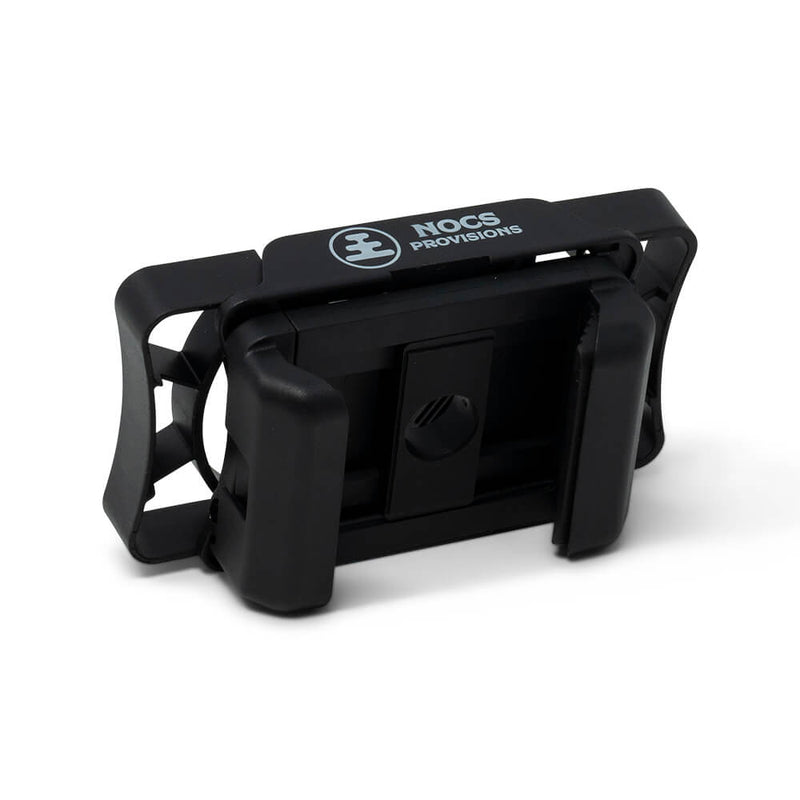
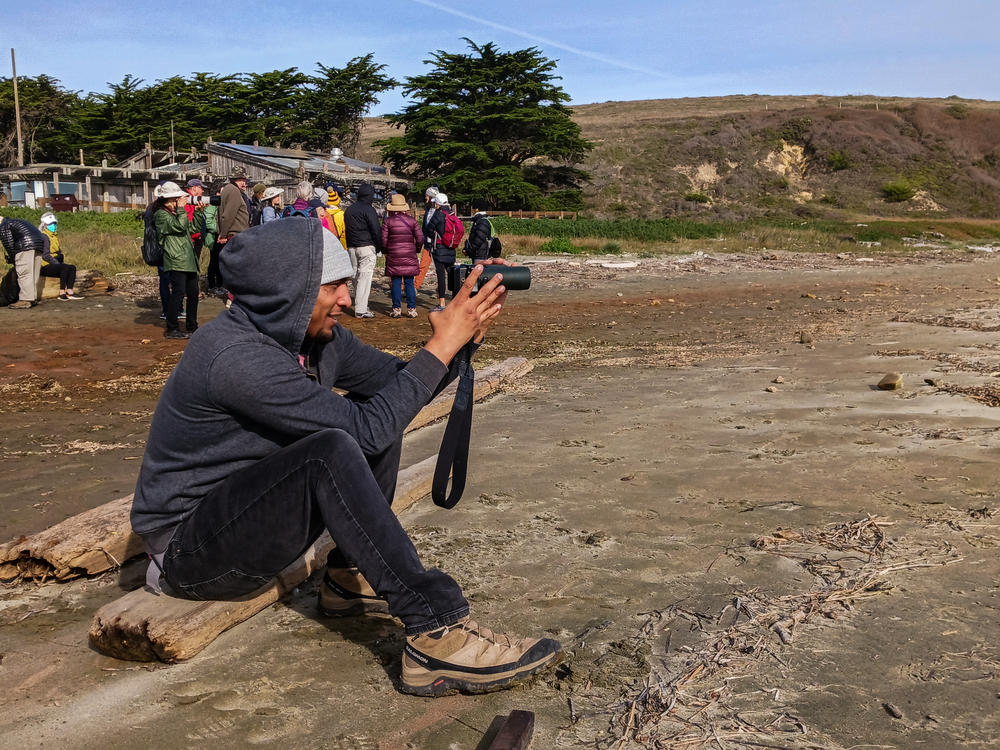
Some moments deserve more than a memory. The Photo Rig Smartphone Adapter makes it easy to capture what you’re seeing through your optics—whether it’s a rare bird, a breaking wave, or a far-off ridgeline. Designed to work seamlessly with most modern smartphones and Nocs optics, it turns quick looks into shareable shots without slowing you down.
Built from high-impact ABS plastic, the Photo Rig is lightweight, packable, and tough enough for life in the field. A self-centering frame and spring-loaded phone clamp make alignment fast and intuitive, so you can spend less time fiddling and more time shooting. Clip it on, line it up, and don’t leave home without it.
- Self-centering frame design allows fast, intuitive alignment with your smartphone’s camera, while high-tension springs keep everything locked in place.
- Fits Binoculars and Monoculars with eyecups under 50mm diameter.
- Spring-loaded phone clamp securely holds most modern smartphones and makes centering quick and repeatable.
- Stepped Grip Fit: fits most smartphones 62mm-95mm wide, with stepped grippers that prevent button presses.
- High-impact ABS frame delivers durable, lightweight construction built to handle years of field use and travel.
- No-Matter-What™ Lifetime Warranty backs every pair, so you can roam farther, use them harder, and worry less about the rest.
Apple iPhone
iPhone 6 / 6s / 7 / 8 · iPhone 6 Plus / 6s Plus / 7 Plus / 8 Plus · iPhone X / XS / 11 Pro · iPhone XS Max / 11 Pro Max · iPhone XR / 11 · iPhone 12 mini / 13 mini · iPhone 12 / 12 Pro / 13 / 13 Pro / 14 · iPhone 12 Pro Max / 13 Pro Max / 14 Plus · iPhone 14 Pro / 15 / 15 Pro / 16 / 16 Pro · iPhone 14 Pro Max / 15 Plus / 15 Pro Max / 16 Plus / 16 Pro Max · iPhone 17 / 17 Pro · iPhone 17 Air · iPhone 17 Pro Max · iPhone SE (2nd / 3rd gen)
Samsung Galaxy S
Galaxy S6 / S7 / S8 / S9 / S10 · Galaxy S6 Edge+ / S7 Edge / S8+ / S9+ / S10+ · Galaxy S10e · Galaxy S20 / S21 / S22 / S23 / S24 / S25 · Galaxy S20+ / S21+ / S22+ / S23+ / S24+ / S25+ · Galaxy S20 Ultra / S21 Ultra / S22 Ultra / S23 Ultra / S24 Ultra / S25 Ultra
Google Pixel
Pixel / Pixel 2 / Pixel 3 / Pixel 4 · Pixel XL / 2 XL / 3 XL · Pixel 3a / 4a / 5 · Pixel 5a / 6a / 7a / 8a / 9a · Pixel 6 / 7 · Pixel 8 / 9 / 10 · Pixel 6 Pro / 7 Pro / 8 Pro / 9 Pro XL / 10 Pro XL
We offer free standard shipping on all US orders over $100. All orders will ship the following business day (M-F).
We offer additional shipping services for expedited and international orders. All international orders ship with Passport DDP shipping – you will be charged taxes/import fees during the checkout process on our website to enable a smooth delivery process (this means no additional import fees upon delivery).
All items have a 30-day No Questions Asked return policy from the date received. Nocs covers return shipping on domestic orders. Items sent back to us without first requesting a return will not be accepted.
Some moments deserve more than a memory. The Photo Rig Smartphone Adapter makes it easy to capture what you’re seeing through your optics—whether it’s a rare bird, a breaking wave, or a far-off ridgeline. Designed to work seamlessly with most modern smartphones and Nocs optics, it turns quick looks into shareable shots without slowing you down.
Built from high-impact ABS plastic, the Photo Rig is lightweight, packable, and tough enough for life in the field. A self-centering frame and spring-loaded phone clamp make alignment fast and intuitive, so you can spend less time fiddling and more time shooting. Clip it on, line it up, and don’t leave home without it.
- Self-centering frame design allows fast, intuitive alignment with your smartphone’s camera, while high-tension springs keep everything locked in place.
- Fits Binoculars and Monoculars with eyecups under 50mm diameter.
- Spring-loaded phone clamp securely holds most modern smartphones and makes centering quick and repeatable.
- Stepped Grip Fit: fits most smartphones 62mm-95mm wide, with stepped grippers that prevent button presses.
- High-impact ABS frame delivers durable, lightweight construction built to handle years of field use and travel.
- No-Matter-What™ Lifetime Warranty backs every pair, so you can roam farther, use them harder, and worry less about the rest.
Apple iPhone
iPhone 6 / 6s / 7 / 8 · iPhone 6 Plus / 6s Plus / 7 Plus / 8 Plus · iPhone X / XS / 11 Pro · iPhone XS Max / 11 Pro Max · iPhone XR / 11 · iPhone 12 mini / 13 mini · iPhone 12 / 12 Pro / 13 / 13 Pro / 14 · iPhone 12 Pro Max / 13 Pro Max / 14 Plus · iPhone 14 Pro / 15 / 15 Pro / 16 / 16 Pro · iPhone 14 Pro Max / 15 Plus / 15 Pro Max / 16 Plus / 16 Pro Max · iPhone 17 / 17 Pro · iPhone 17 Air · iPhone 17 Pro Max · iPhone SE (2nd / 3rd gen)
Samsung Galaxy S
Galaxy S6 / S7 / S8 / S9 / S10 · Galaxy S6 Edge+ / S7 Edge / S8+ / S9+ / S10+ · Galaxy S10e · Galaxy S20 / S21 / S22 / S23 / S24 / S25 · Galaxy S20+ / S21+ / S22+ / S23+ / S24+ / S25+ · Galaxy S20 Ultra / S21 Ultra / S22 Ultra / S23 Ultra / S24 Ultra / S25 Ultra
Google Pixel
Pixel / Pixel 2 / Pixel 3 / Pixel 4 · Pixel XL / 2 XL / 3 XL · Pixel 3a / 4a / 5 · Pixel 5a / 6a / 7a / 8a / 9a · Pixel 6 / 7 · Pixel 8 / 9 / 10 · Pixel 6 Pro / 7 Pro / 8 Pro / 9 Pro XL / 10 Pro XL
We offer free standard shipping on all US orders over $100. All orders will ship the following business day (M-F).
We offer additional shipping services for expedited and international orders. All international orders ship with Passport DDP shipping – you will be charged taxes/import fees during the checkout process on our website to enable a smooth delivery process (this means no additional import fees upon delivery).
All items have a 30-day No Questions Asked return policy from the date received. Nocs covers return shipping on domestic orders. Items sent back to us without first requesting a return will not be accepted.
iPhone 15 Pro primary camera is bottom camera. Align smartphone adapter to primary camera, then follow steps below.
- For best results, enable Macro Control in your settings. Go to Settings > Camera > Macro > Turn On.
- Open Camera App. There will be a yellow, flower icon in lower left corner. Tap icon to turn off this setting which will prevent lens from switching to other cameras.
- Zoom in slowly to avoid the automatic switching of camera lenses.


iPhone 14 Pro primary camera is bottom camera. Align smartphone adapter to primary camera, then follow steps below.
- For best results, enable Macro Control in your settings. Go to Settings > Camera > Macro > Turn On.
- Open Camera App. There will be a yellow, flower icon in lower left corner. Tap icon to turn off this setting which will prevent lens from switching to other cameras.
- Zoom in slowly to avoid the automatic switching of camera lenses.


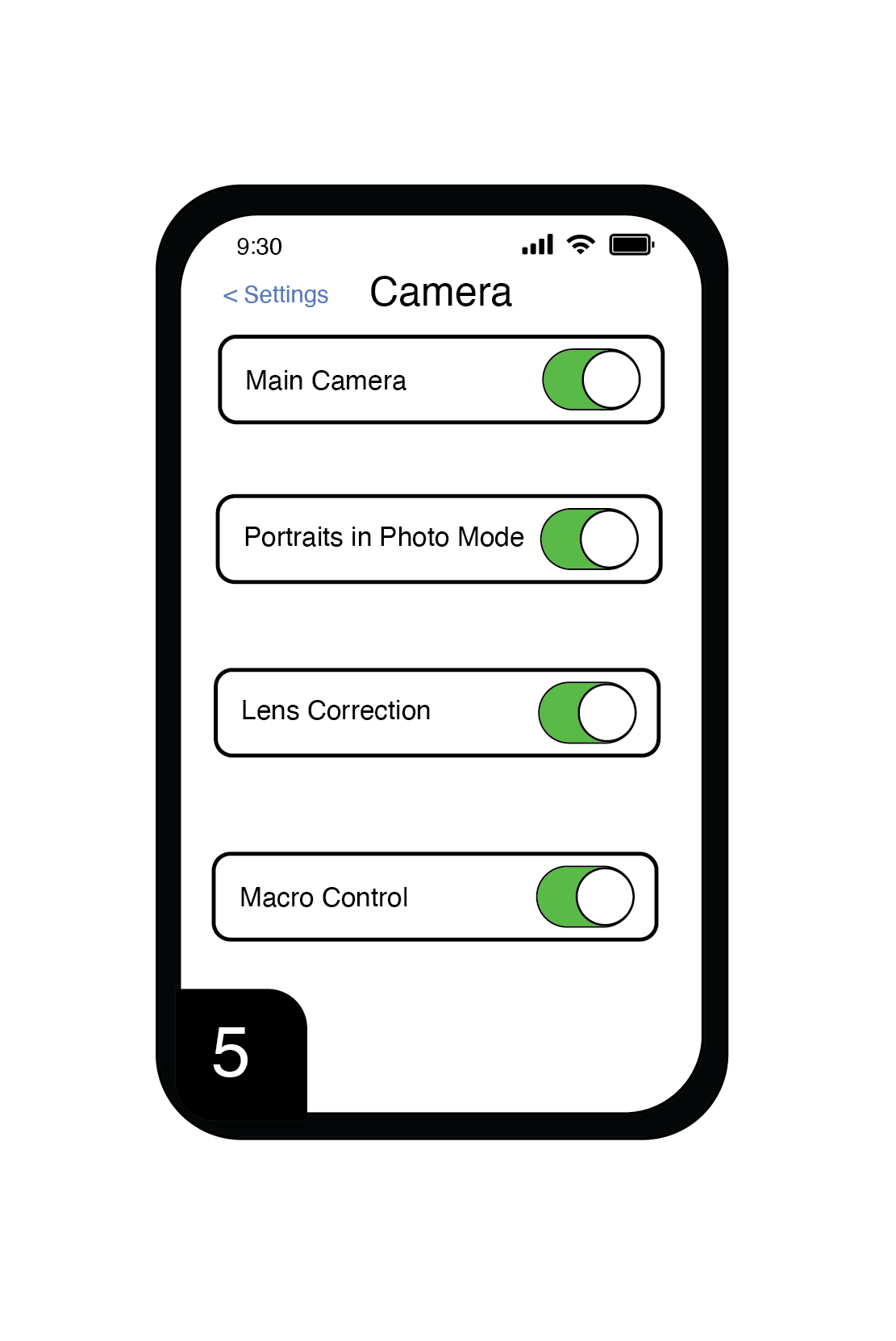


iPhone 13 Pro primary camera is bottom camera. Align smartphone adapter to primary camera, then follow steps below.
- For best results, enable Macro Control in your settings. Go to Settings > Camera > Macro > Turn On.
- Open Camera App. There will be a yellow, flower icon in lower left corner. Tap icon to turn off this setting which will prevent lens from switching to other cameras.
- Zoom in slowly to avoid the automatic switching of camera lenses.

Align smartphone adapter to primary camera, then follow steps below.
- You can use your Portrait mode for pictures, or Cinematic for videos, which disables the zoom function. Zoom features will not work with this phone and digiscoping model.
- For best results, you may need to use the CarsonCam app, but zoom features are still unavailable.

iPhone 12 Pro primary camera is bottom camera. Align smartphone adapter to primary camera, then follow steps below.
- For best results, enable Macro Control in your settings. Go to Settings > Camera > Macro > Turn On.
- Open Camera App. There will be a yellow, flower icon in lower left corner. Tap icon to turn off this setting which will prevent lens from switching to other cameras.
- Zoom in slowly to avoid the automatic switching of camera lenses.

iPhone 12 Pro Max primary camera is bottom camera. Align smartphone adapter to primary camera, then follow steps below.
- For best results, enable Macro Control in your settings. Go to Settings > Camera > Macro > Turn On.
- Open Camera App. There will be a yellow, flower icon in lower left corner. Tap icon to turn off this setting which will prevent lens from switching to other cameras.
- Zoom in slowly to avoid the automatic switching of camera lenses.

Align smartphone adapter to primary camera, then follow steps below.
- You can use your Portrait mode for pictures, or Cinematic for videos, which disables the zoom function. Zoom features will not work with this phone and digiscoping model.
- For best results, you may need to use the CarsonCam app, but zoom features are still unavailable.

Align smartphone adapter to primary camera, then follow steps below.
- You can use your Portrait mode for pictures, or Cinematic for videos, which disables the zoom function. Zoom features will not work with this phone and digiscoping model.
- For best results, you may need to use the CarsonCam app, but zoom features are still unavailable.
Align smartphone adapter to primary camera, then follow steps below.
- For best results, enable Macro Control by opening Camera App. Focus phone close to subject to enable Macro (yellow flower icon). Tap icon to turn OFF this setting which will prevent lens from switching to other cameras.
- Zoom in slowly to avoid the automatic switching of camera lenses.


Align smartphone adapter to primary camera, then follow steps below.
- For best results, enable Macro Control by opening Camera App. Focus phone close to subject to enable Macro (yellow flower icon). Tap icon to turn OFF this setting which will prevent lens from switching to other cameras.
- Zoom in slowly to avoid the automatic switching of camera lenses.


Align smartphone adapter to primary camera, then follow steps below.
- You can use your Portrait mode for pictures, or Cinematic for videos, which disables the zoom function. Zoom features will not work with this phone and digiscoping model.
- For best results, you may need to use the CarsonCam app, but zoom features are still unavailable.
On Android, you may to use a third party app that lets you select just the primary camera only.

Align smartphone adapter to primary camera, then follow steps below.
- You can use your Portrait mode for pictures, or Cinematic for videos, which disables the zoom function. Zoom features will not work with this phone and digiscoping model.
- For best results, you may need to use the CarsonCam app, but zoom features are still unavailable.
On Android, you may to use a third party app that lets you select just the primary camera only.

Align smartphone adapter to primary camera, then follow steps below.
- You can use your Portrait mode for pictures, or Cinematic for videos, which disables the zoom function. Zoom features will not work with this phone and digiscoping model.
- For best results, you may need to use the CarsonCam app, but zoom features are still unavailable.
On Android, you may to use a third party app that lets you select just the primary camera only.


Align smartphone adapter to primary camera, then follow steps below.
- You can use your Portrait mode for pictures, or Cinematic for videos, which disables the zoom function. Zoom features will not work with this phone and digiscoping model.
- For best results, you may need to use the CarsonCam app, but zoom features are still unavailable.
On Android, you may to use a third party app that lets you select just the primary camera only.

Align smartphone adapter to primary camera, then follow steps below.
- You can use your Portrait mode for pictures, or Cinematic for videos, which disables the zoom function. Zoom features will not work with this phone and digiscoping model.
- For best results, you may need to use the CarsonCam app, but zoom features are still unavailable.
On Android, you may to use a third party app that lets you select just the primary camera only.


Align smartphone adapter to primary camera, then follow steps below.
- You can use your Portrait mode for pictures, or Cinematic for videos, which disables the zoom function. Zoom features will not work with this phone and digiscoping model.
- For best results, you may need to use the CarsonCam app, but zoom features are still unavailable.
On Android, you may to use a third party app that lets you select just the primary camera only.

Align smartphone adapter to primary camera, then follow steps below.
- You can use your Portrait mode for pictures, or Cinematic for videos, which disables the zoom function. Zoom features will not work with this phone and digiscoping model.
- For best results, you may need to use the CarsonCam app, but zoom features are still unavailable.
On Android, you may to use a third party app that lets you select just the primary camera only.

Align smartphone adapter to primary camera, then follow steps below.
- You can use your Portrait mode for pictures, or Cinematic for videos, which disables the zoom function. Zoom features will not work with this phone and digiscoping model.
- For best results, you may need to use the CarsonCam app, but zoom features are still unavailable.
On Android, you may to use a third party app that lets you select just the primary camera only.

 i
i i
i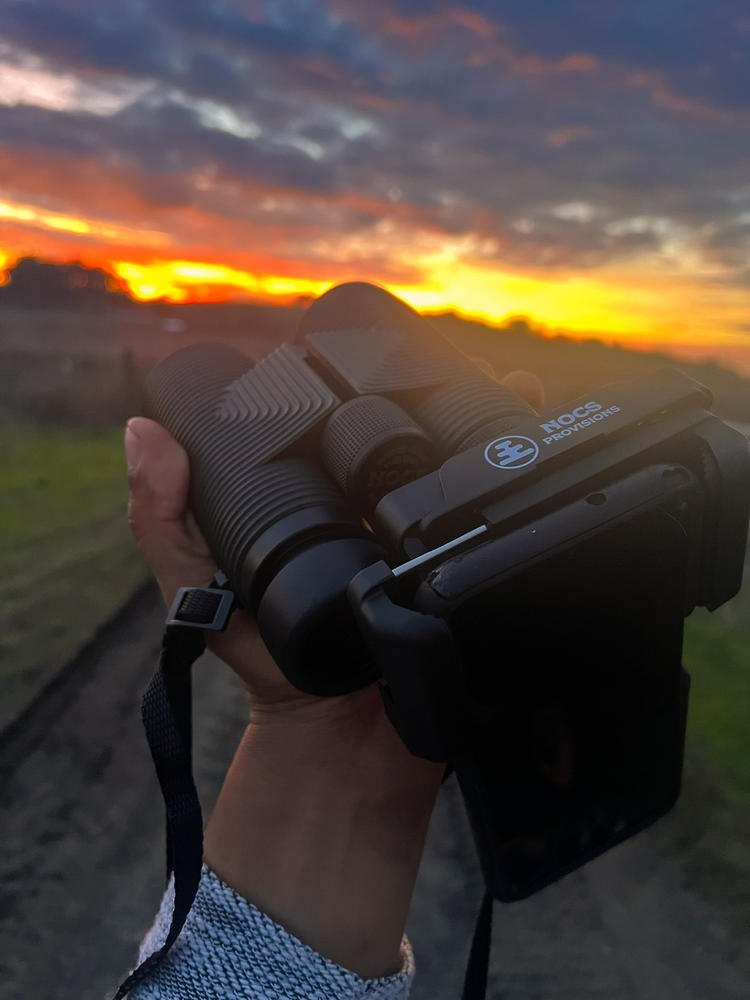 i
i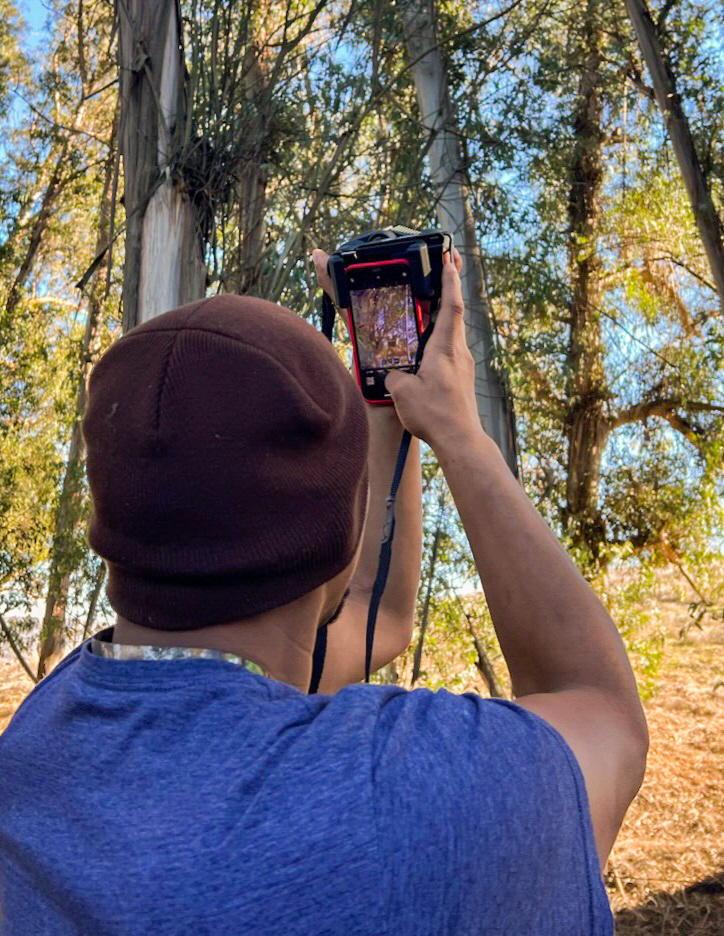 i
i i
i i
i i
i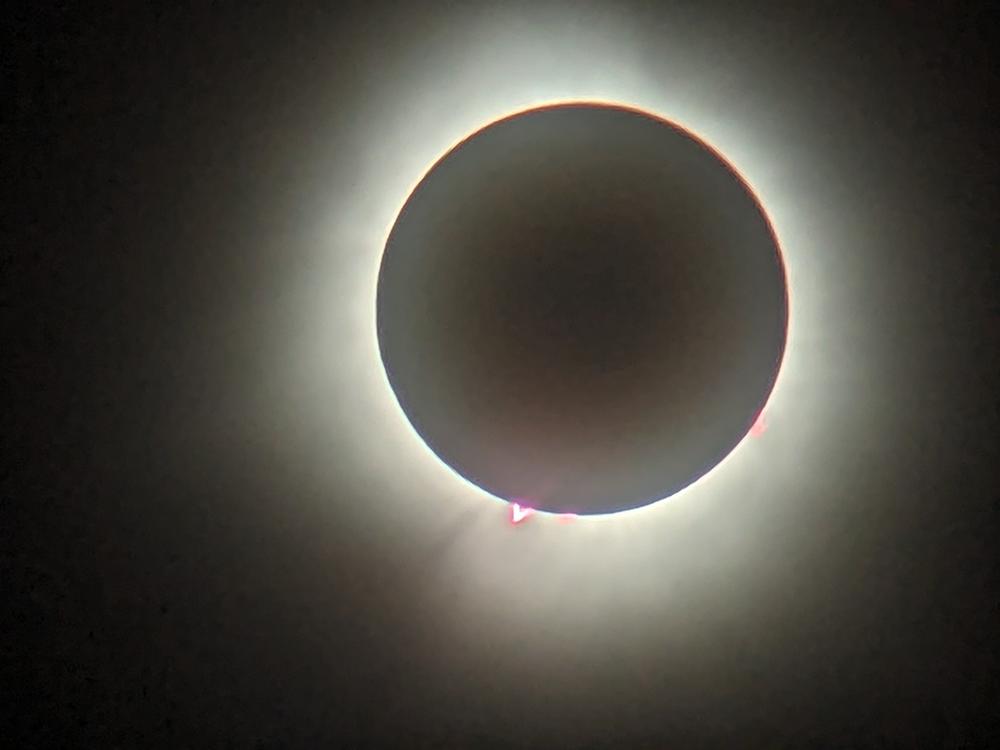 i
i i
i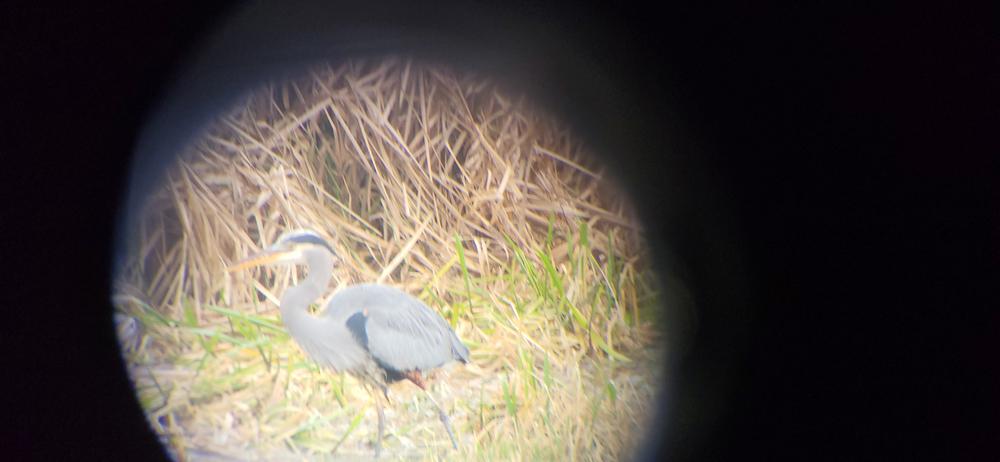 i
i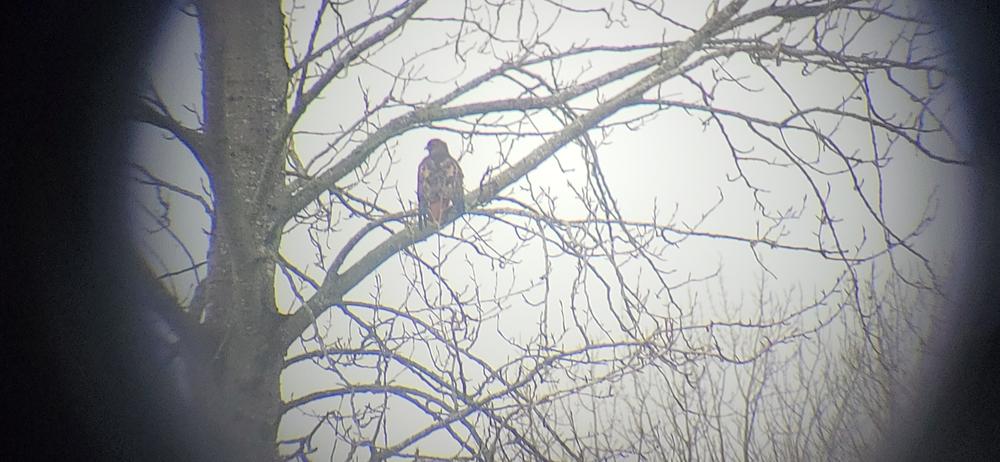 i
i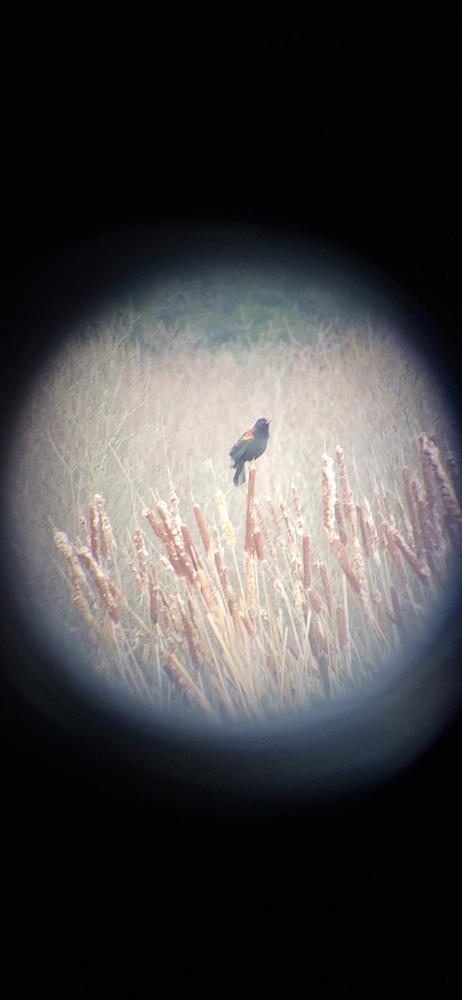 i
i